
Multi-Site Permission Management: Company, Project and Role Scope
Everyone sees only their own scope
The structure is built on a hierarchy of companies, projects and project groups together with units and locations. Users are authorised through a role plus a scope: a site supervisor sees only their own project, a regional manager every project in their region, and a company administrator everything. Scope narrows not just lists but reports as well. Parent and subsidiary companies are defined in a tree; on a project the host company is joined by subsidiaries and subcontractors as participants.
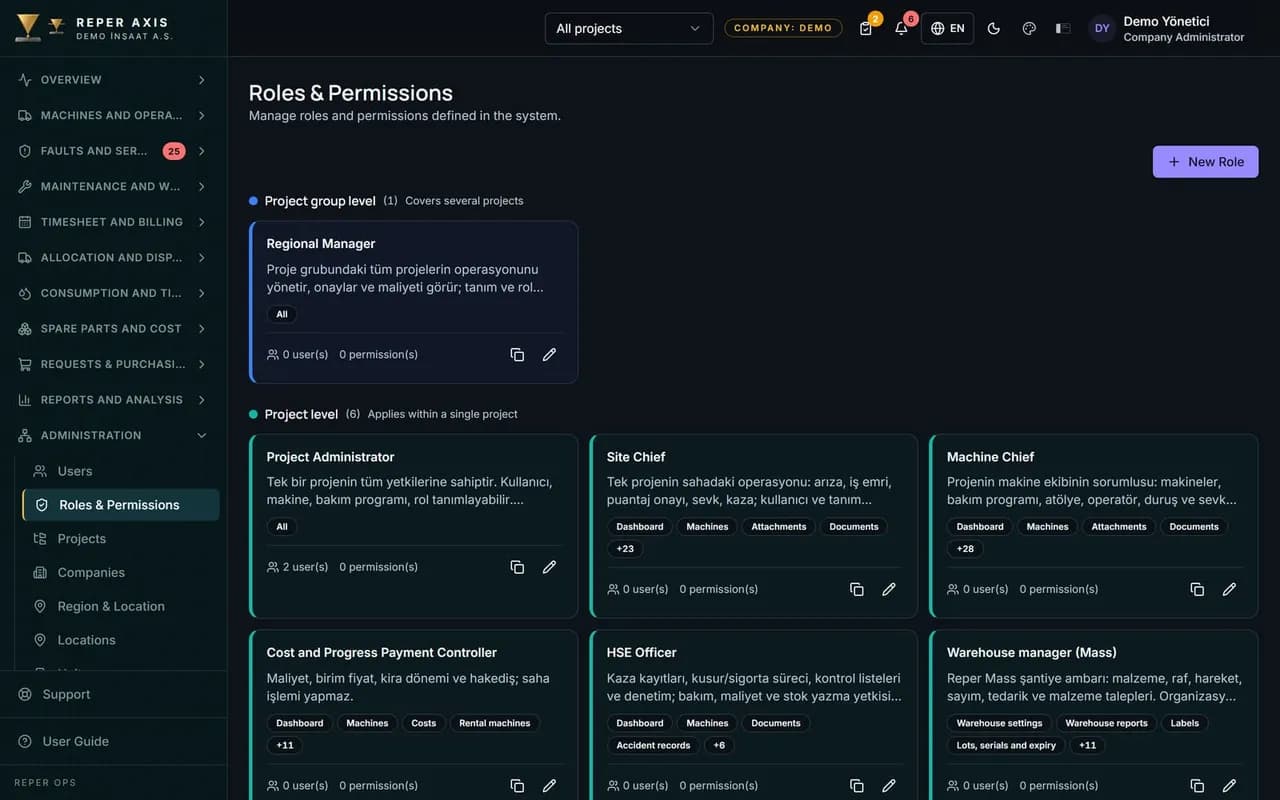

Module-level permissions
You choose which modules each role can see, with exceptions defined per user. A disabled module does not appear in the menu at all.

Sensitive permissions kept separate
Viewing cost, editing cost, managing stock and audit trail access are granted independently of each other. Work is delegated without handing out broad access.

Role seniority
No user can manage a role more senior than their own. The chain of authority cannot be broken from below.

Scope applies to reports too
Users only see data for the companies and projects they are assigned to. A cost report run by a site supervisor never reaches beyond their own project.

Sign-up requests and approval modes
New user requests are opened with administrator approval. Fault and work order approval is set as mandatory, optional or off per company.
How it works
- 1
Build the structure
Define companies, regions, projects and locations as a hierarchy.
- 2
Prepare the roles
Choose the modules and sensitive permissions each role receives.
- 3
Grant scope
Assign the user to companies and projects to set their field of view.
- 4
Handle exceptions
You can enable or disable modules for one individual user.
How multi-site permission management is set up
The structure is built top down in the Definitions section: first the company, then the projects under it, the regions under the projects and finally locations such as job sites or depots. Units are attached to a company and a project and can be flagged as maintenance units where needed. A lower level cannot be added before its parent exists, and that order keeps the scope consistent. A subsidiary is defined by choosing a parent company on the company record; besides the host company, participant and subcontractor companies are listed on the project.
On the Roles and Permissions page, administrators set the role name, code and scope; they tick the modules the role can see in the Modules section and the detailed rights in the Permissions section. On the Users page a role and unit are chosen for the new user, and company, project, region or location scope is added in the Scope section.
What scope narrows
Scope limits data, not just the menu. A site supervisor only sees the machines, faults and reports of their own project; a regional manager sees every project in their region and a company administrator sees everything. Dashboard figures, report tables and notifications all obey the same scope rule. A disabled module never appears in the menu, and per-user exceptions let a module be switched on or off for a single person.
Sensitive permissions and seniority
Sensitive permissions such as View Cost, Edit Cost, Manage Stock, Purchase Request, Manage Operators, Edit Downtime, Manage Checklists and View Audit Trail are granted independently of module access. The field team can open faults and run work orders without ever seeing cost figures. No user can manage a role more senior than their own. When permissions change the session refreshes, so the new visibility applies immediately without signing out.
Approval modes, sign-up requests and who it suits
New user requests are listed with a Pending badge on the Sign-up Requests page; the administrator checks the name, email, requested role and unit, then approves by choosing a role and setting the initial password, or rejects the request. Fault and work order approval is set as mandatory, optional or off from the Settings page; in mandatory mode nobody can approve their own record, and in off mode approval buttons disappear entirely so small teams move faster.
It suits organisations managing several companies, regions and job sites in the same structure, along with IT and company administrators. Firms that need to show subcontractor or partner users only their own projects benefit directly from the scope model. Because every permission and role change is written to the audit trail, who granted what to whom and when can always be checked later.
FAQ
Can several companies be managed in the same structure
Yes. Companies are defined in a tree of parent and subsidiary; users scoped to the parent company also see subsidiaries. On a project, subsidiaries and subcontractors are added as participants, and each machine is assigned to the company it works for.
Does a user have to sign out when permissions change
No. The session refreshes when permissions change and the new visibility applies immediately. A disabled module disappears from the menu at once.


Ready to digitize your equipment fleet?
Take the first step toward a more efficient, more controlled and more profitable operation.