
Platform
Platform: the same shared layer in every module
Reper Ops is the shared platform beneath Reper Axis. Who sees what, who gets notified and when, which language the team reads in and how the screen looks are all managed in one place.

Roles, permissions and scope
Permissions depend on which company and project a user belongs to.

Notifications
The right person is reached on the right channel.

Automatic translation
A note written in the field is translated into the reader’s language.
Interface options
Everyone sets up the screen the way they work; the administrator sets defaults for new users.
Roles, permissions and scope
Permissions depend on which company and project a user belongs to. The same person can approve in one project and only view in another.
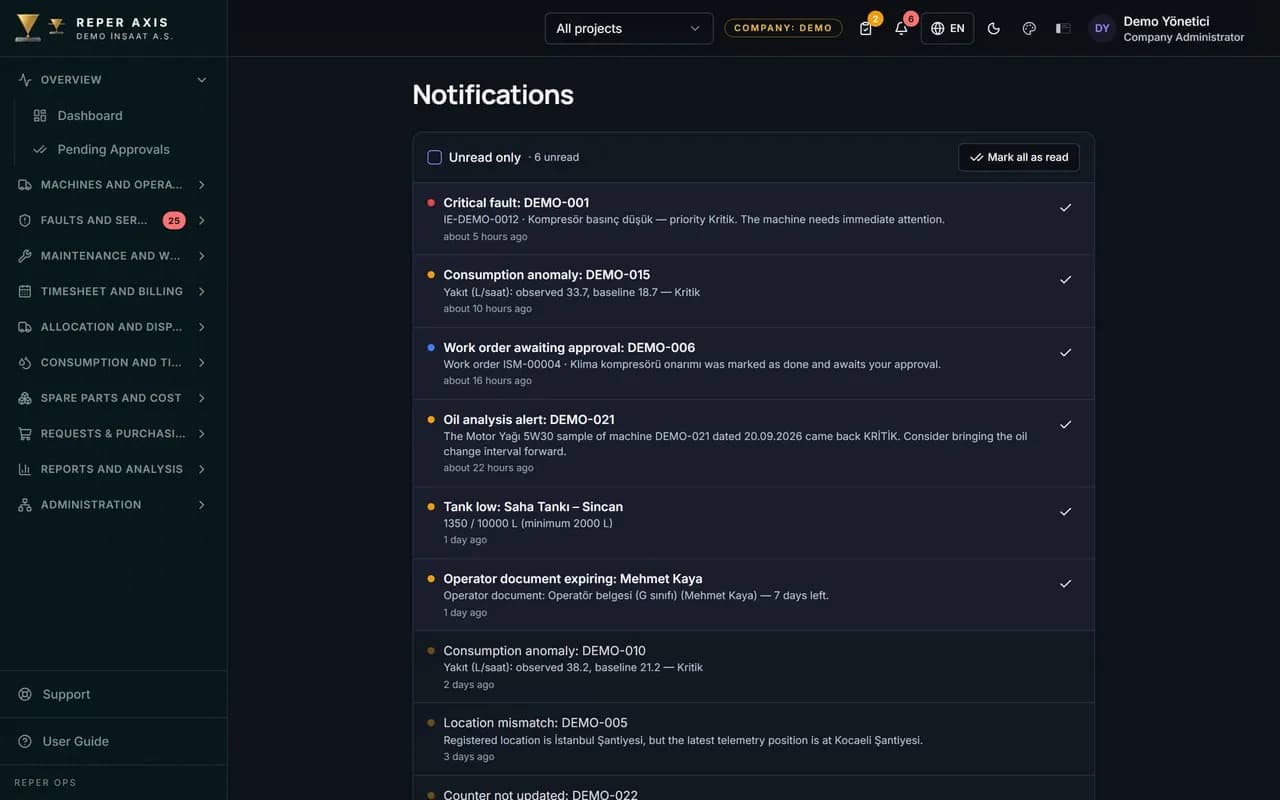
Notifications
The right person is reached on the right channel. A critical fault goes to the maintenance manager, an expiring document to the person responsible.
- In-app, email and mobile notifications
- Preferences per event; email instant or as a daily digest
- Jump from the notification straight to the record
Automatic translation
A note written in the field is translated into the reader’s language. The crew reads what the office wrote in their own language, and the office reads the crew’s notes in theirs.
- Fault, comment, work order and material request texts are translated
- The original text never changes and opens with one tap
- On business accounts the administrator turns it on and sets the monthly quota
Interface options
Everyone sets up the screen the way they work; the administrator sets defaults for new users.
In the Reper Ops web application, the shell, color theme, light or dark mode and density are independent of each other. Every user picks their own preferences; the administrator can set defaults for the installation. Your choices are saved to your account and follow you across devices.
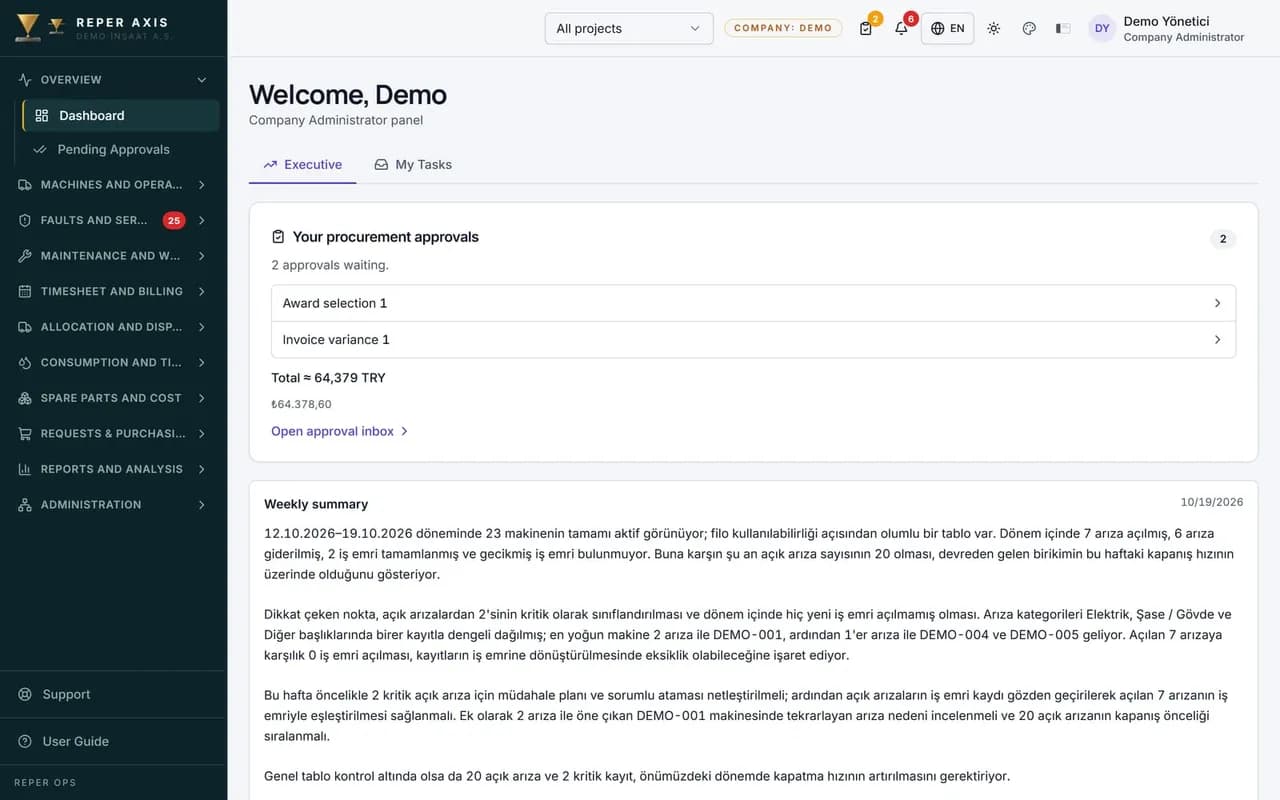
Classic
Grouped left menu and top bar; the familiar fleet screen layout.
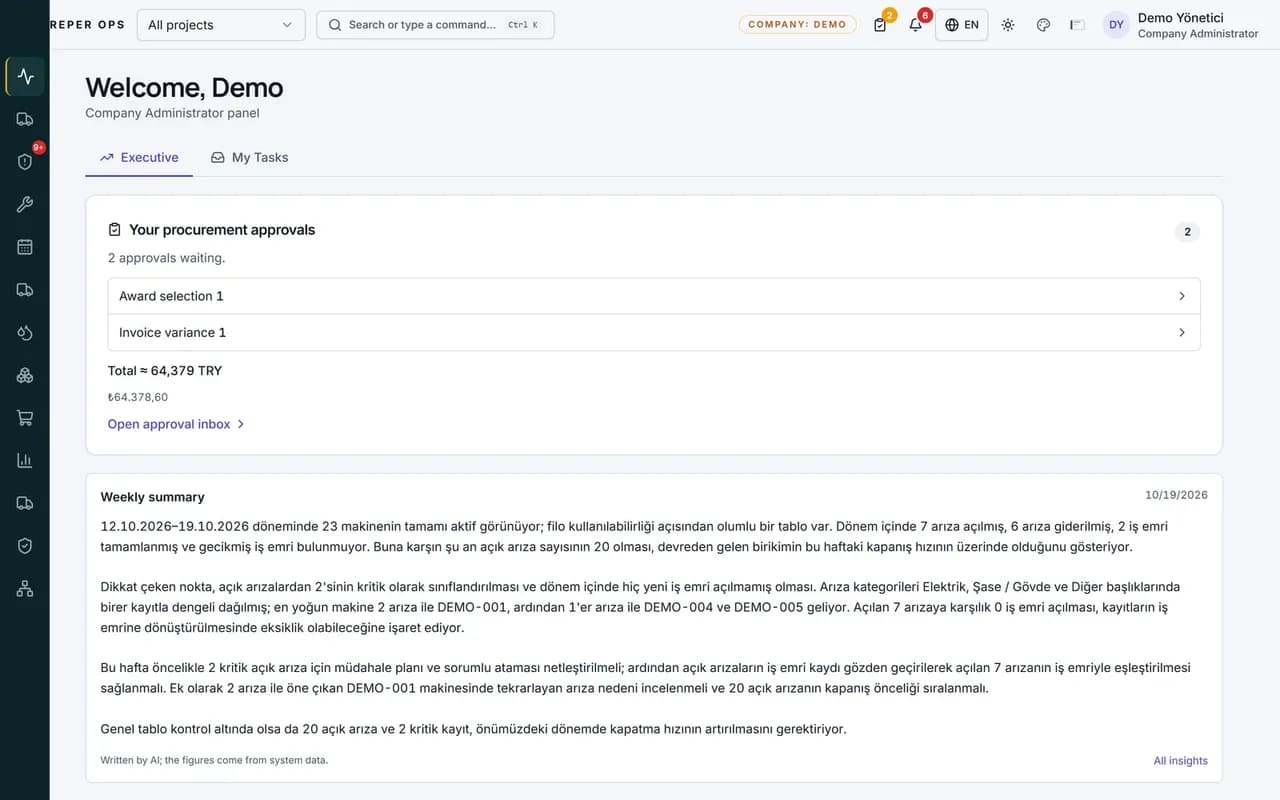
Rail
Narrow icon rail with search and a command palette on top; a wide workspace.
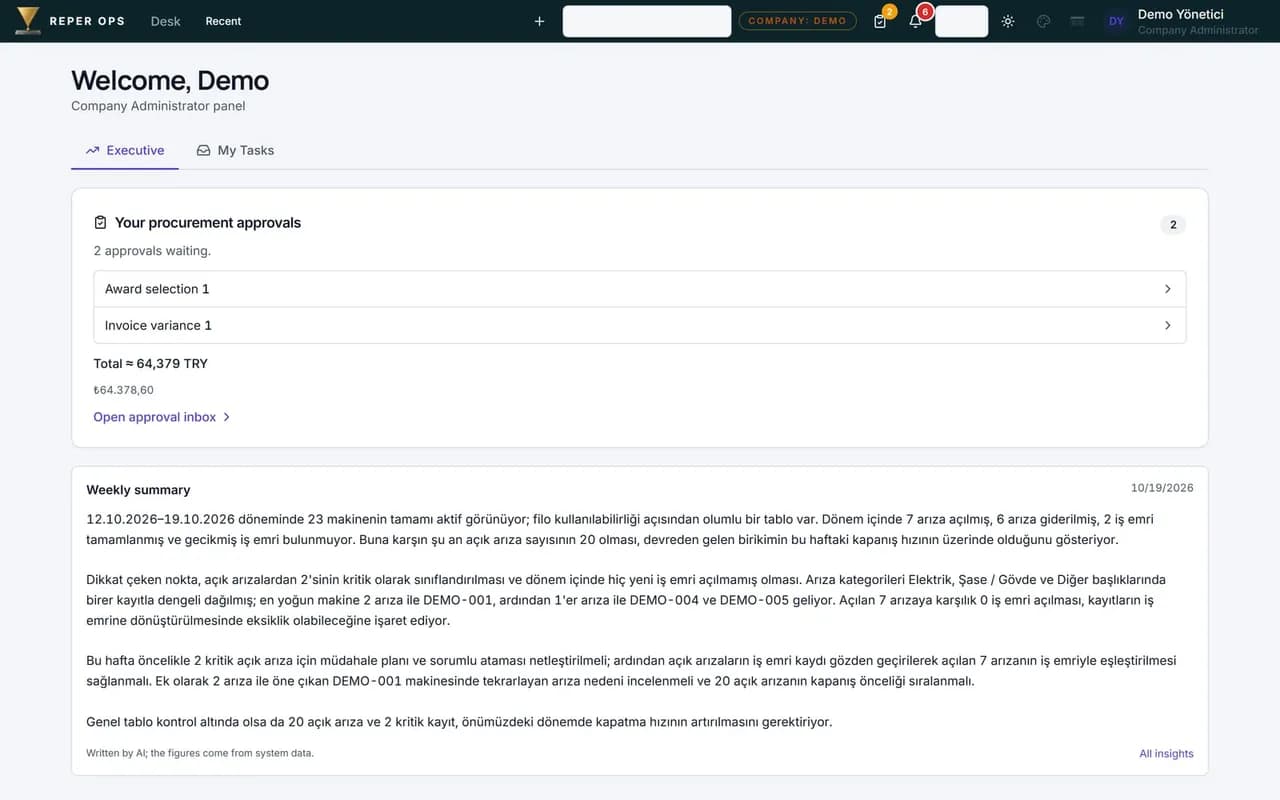
Desk
Home tiles and open work tabs on top; built for quick switching.
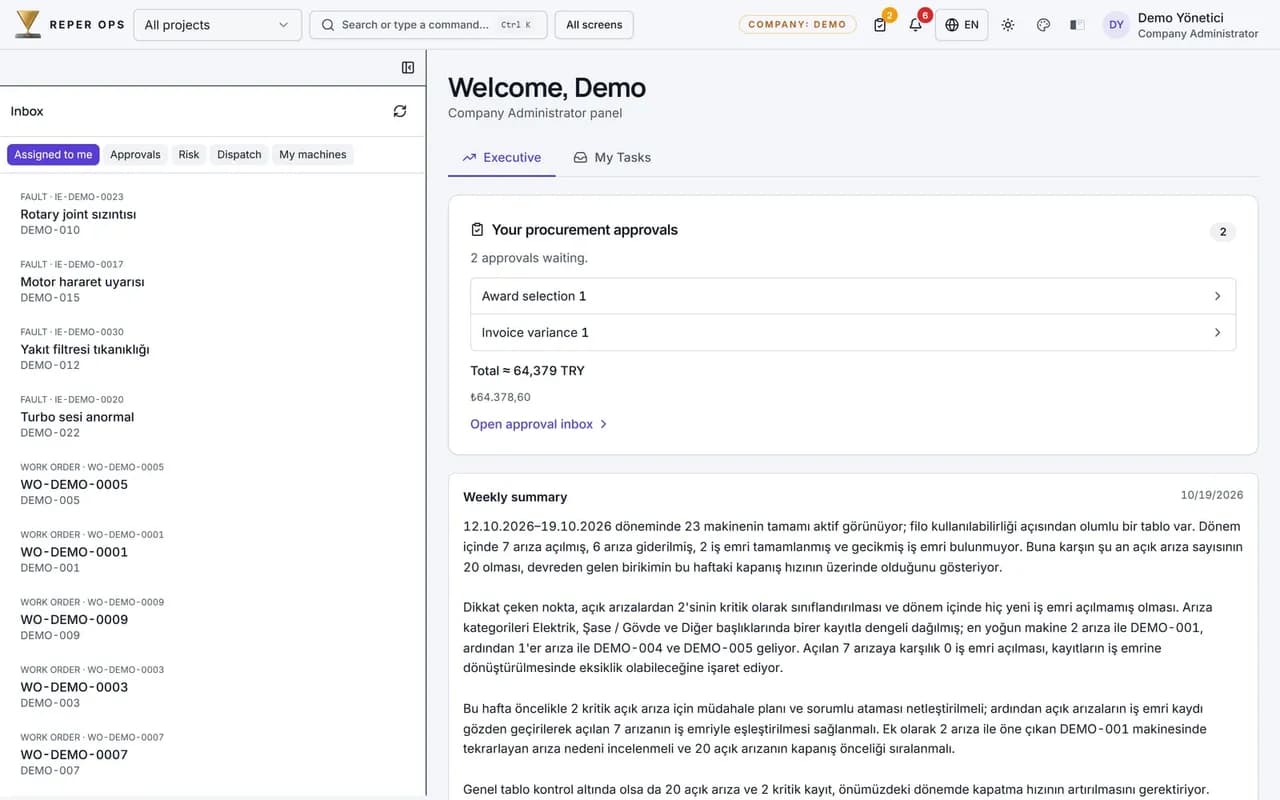
Inbox
Your task list on the left, the selected record on the right; a flow built around the day.
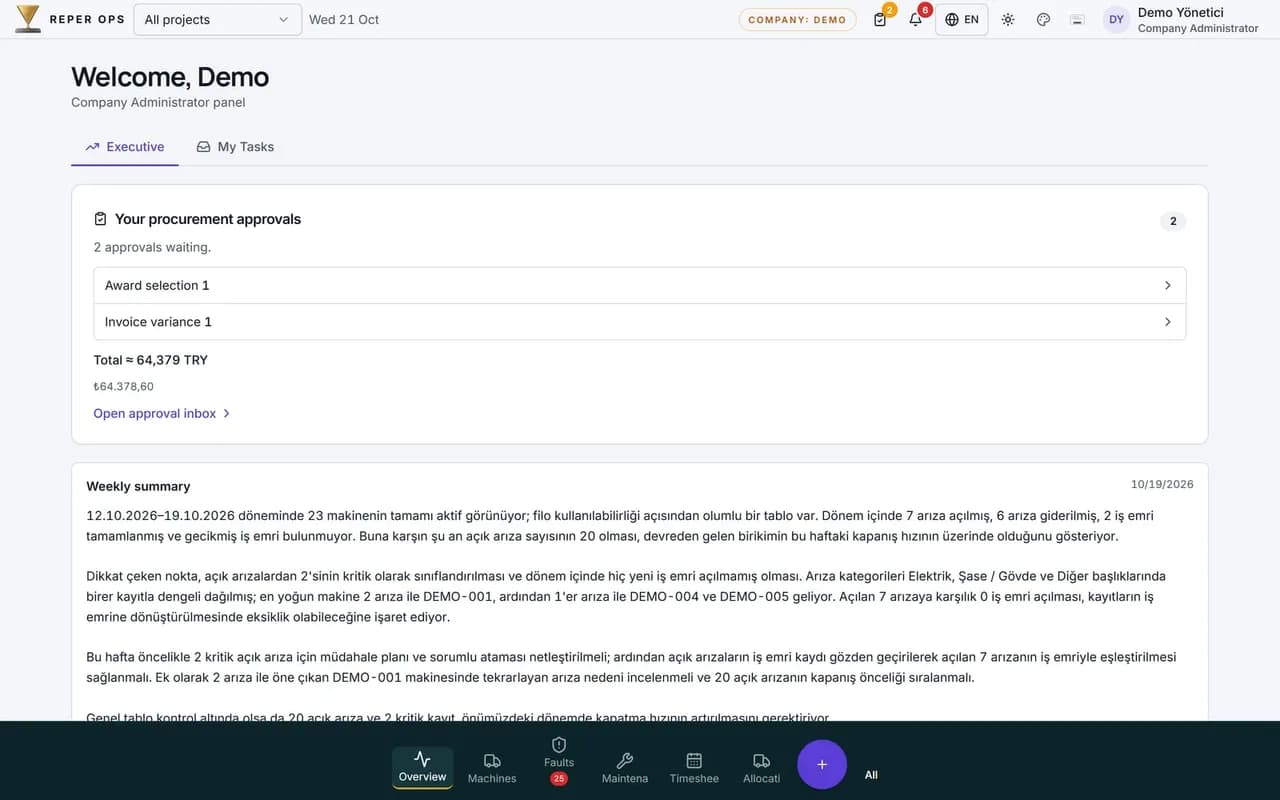
Dock
A fixed menu bar at the bottom with full-width content; ongoing work stays on top.
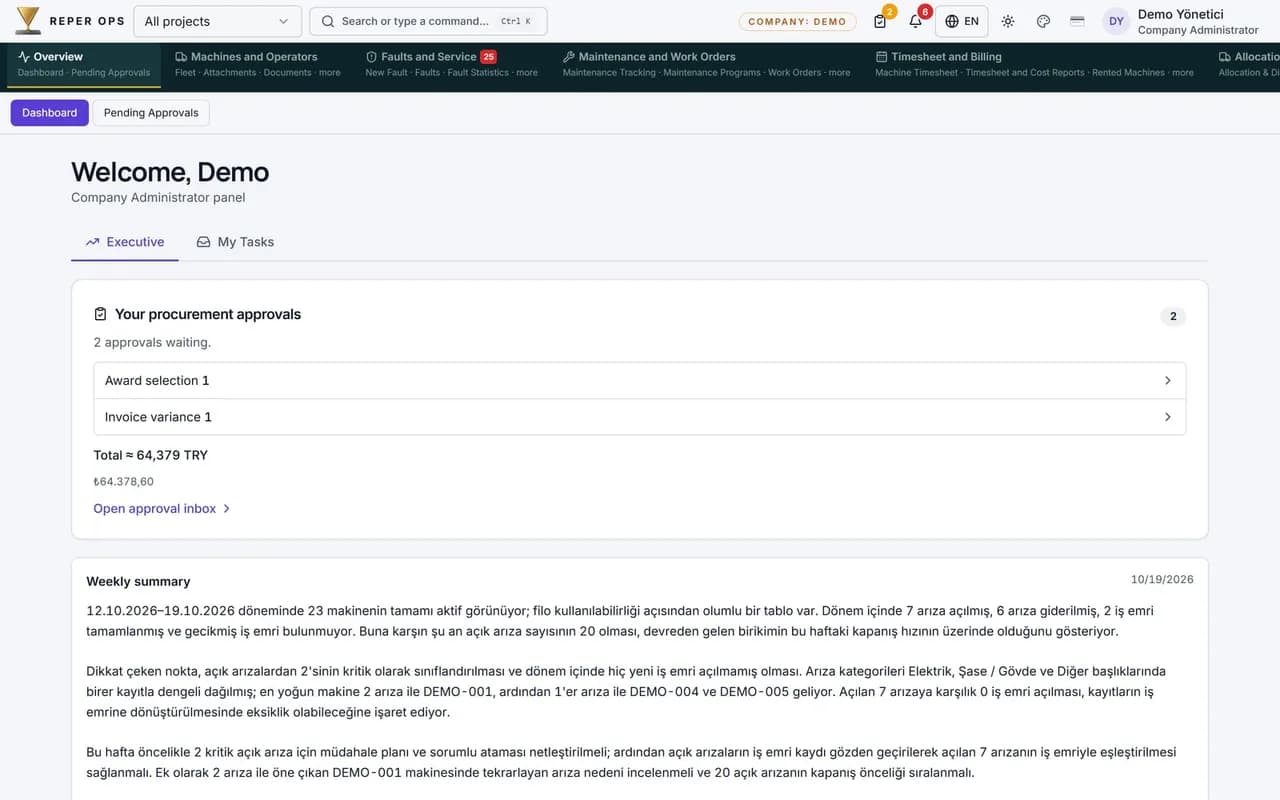
Strip
A horizontal menu strip on top; all modules in a single row.
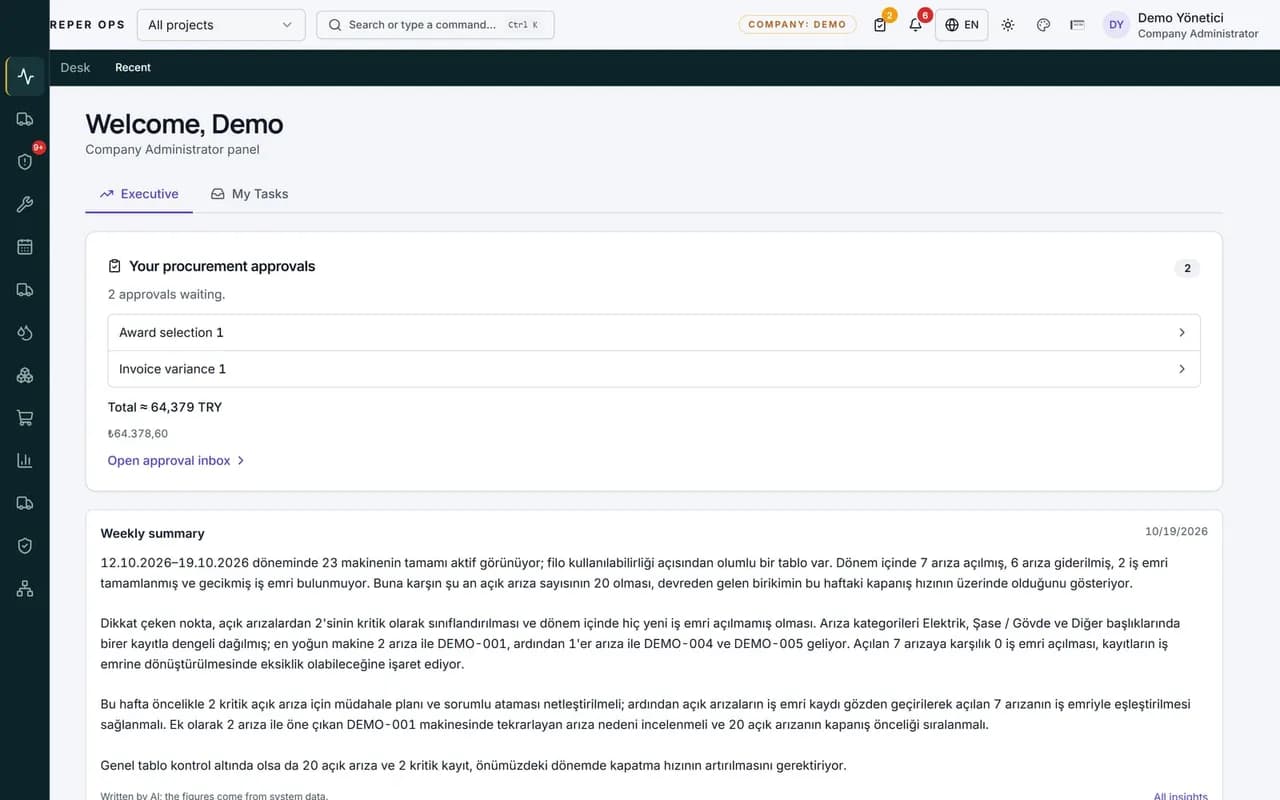
Hybrid
The icon rail combined with the tabbed desk layout.
Color themes and dark mode
Six color palettes and light or dark mode are independent of each other; they work together with your shell choice.
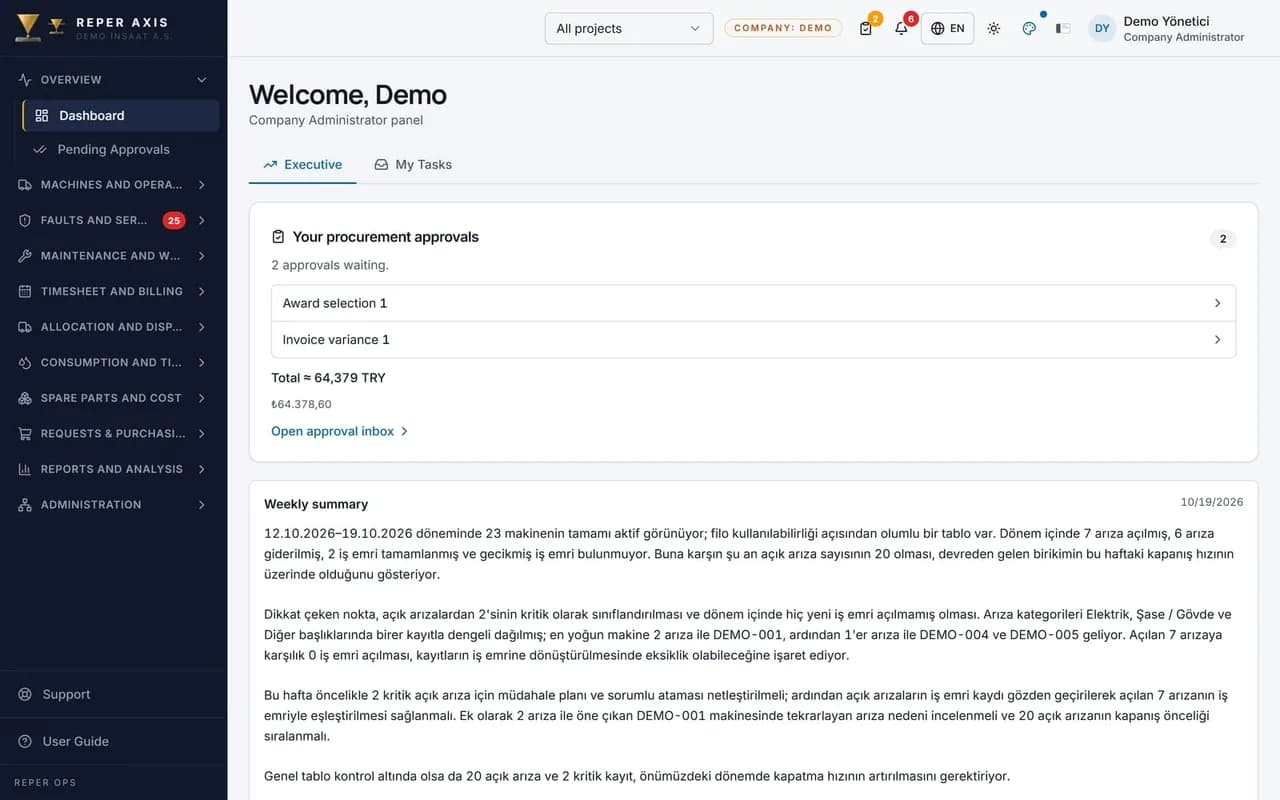
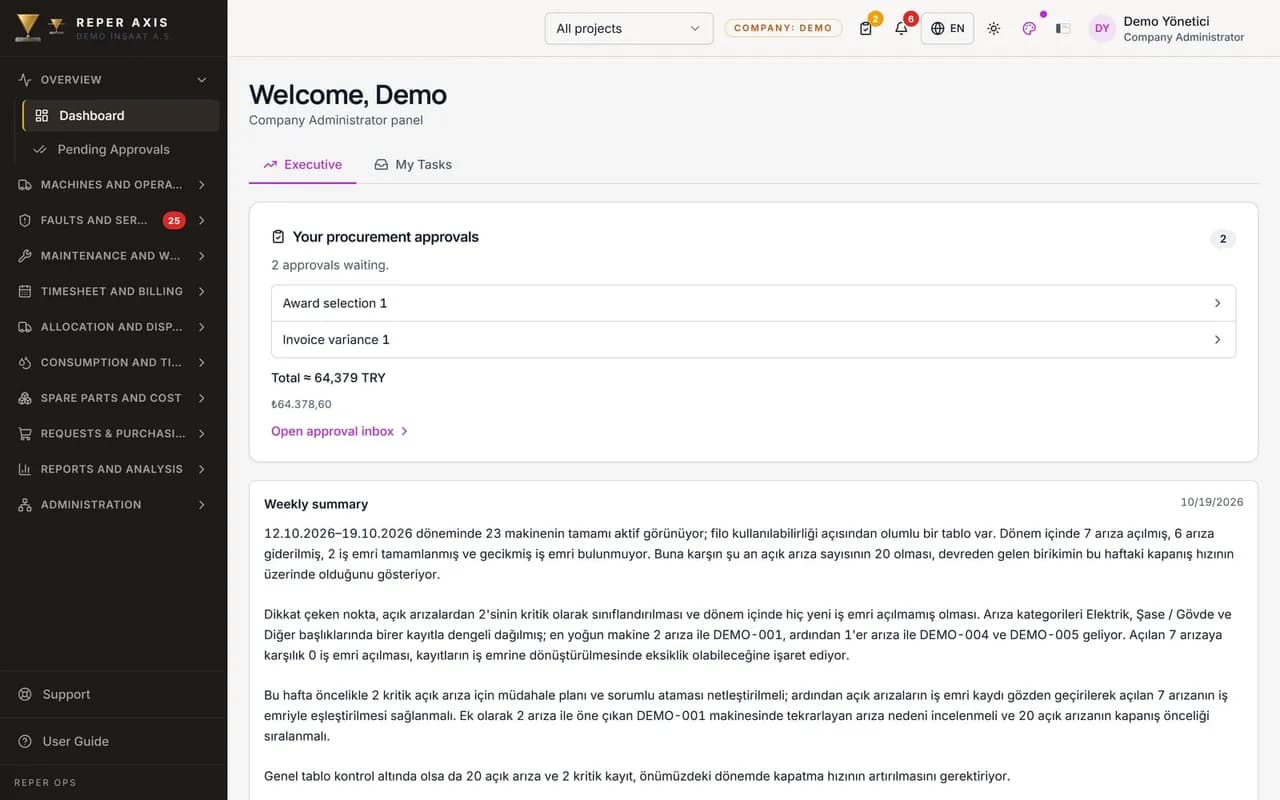
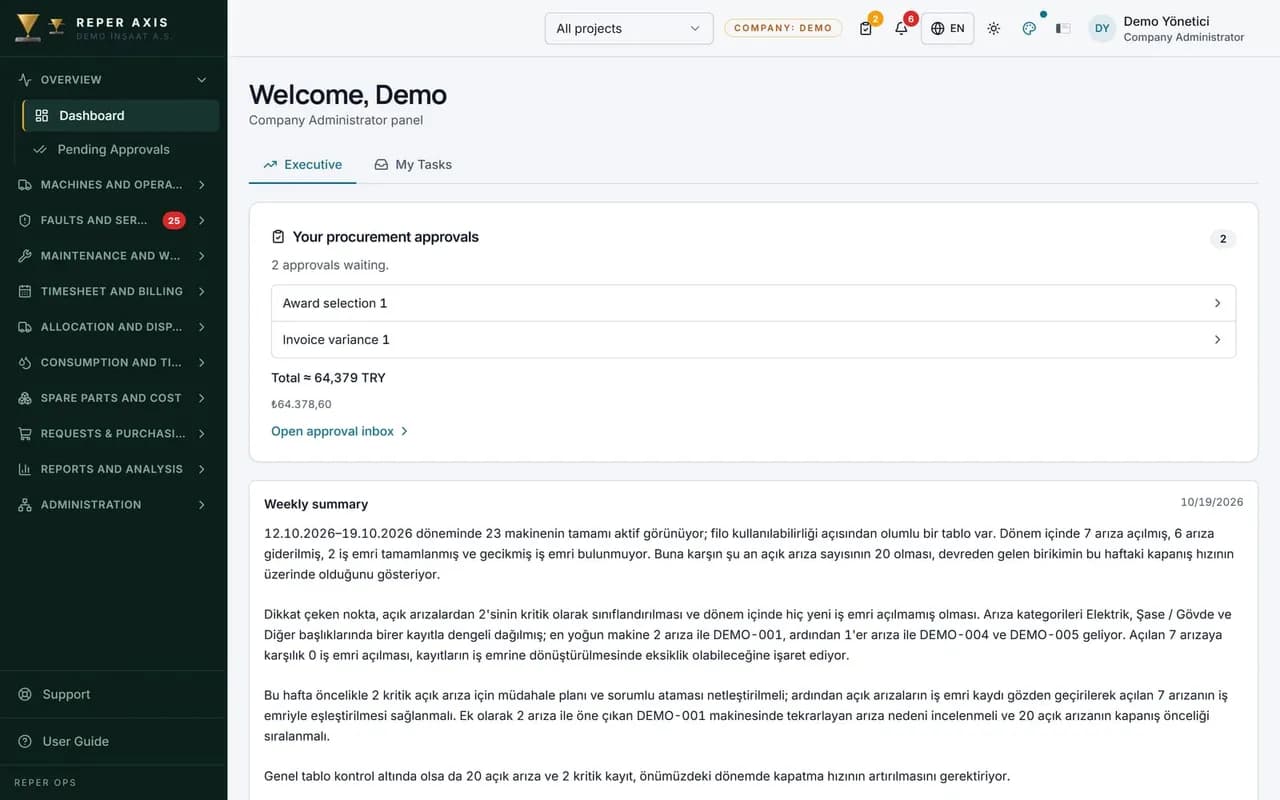
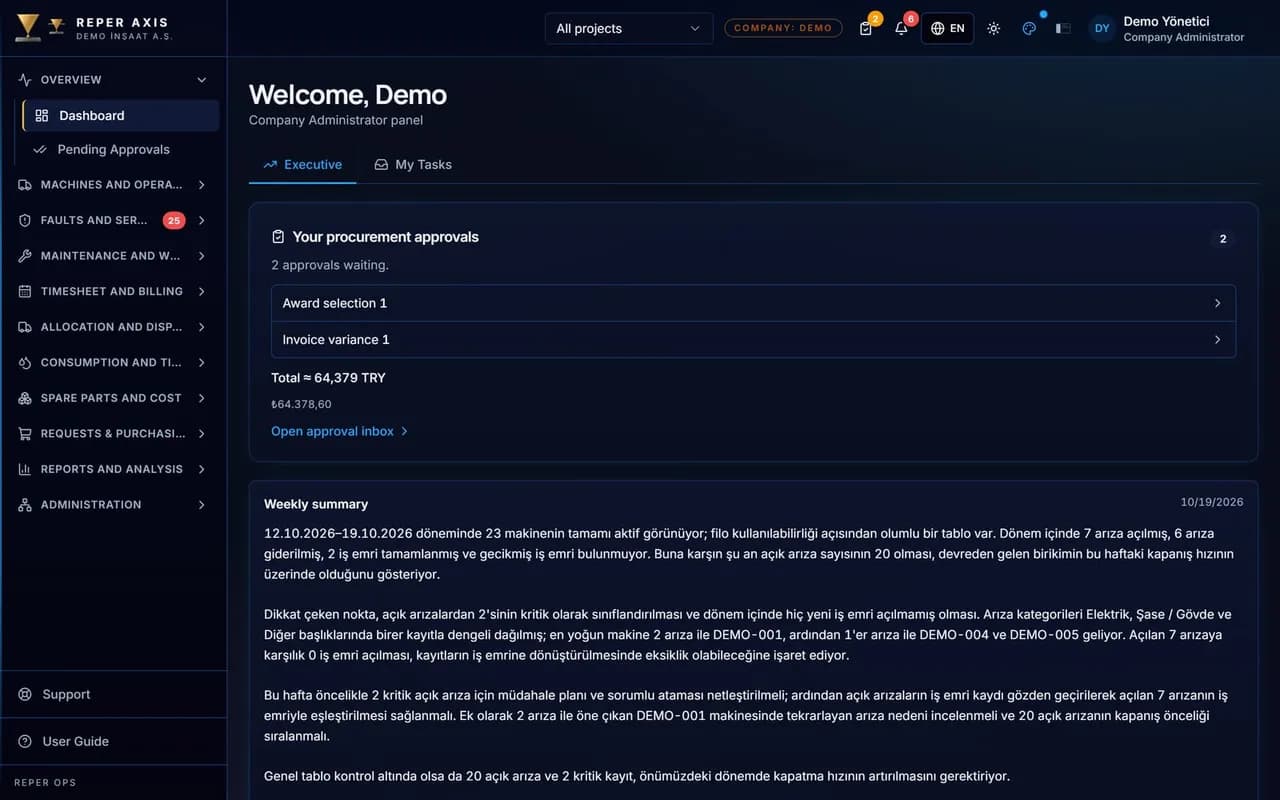
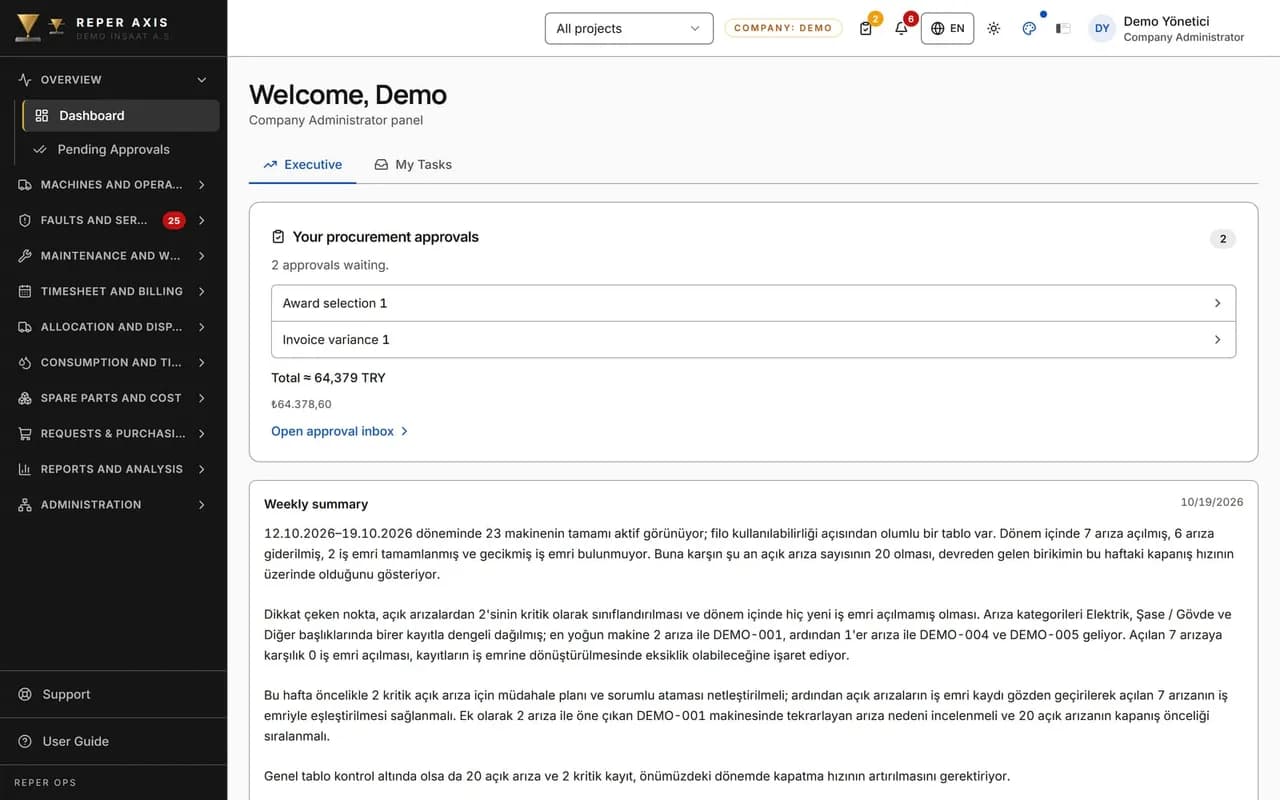
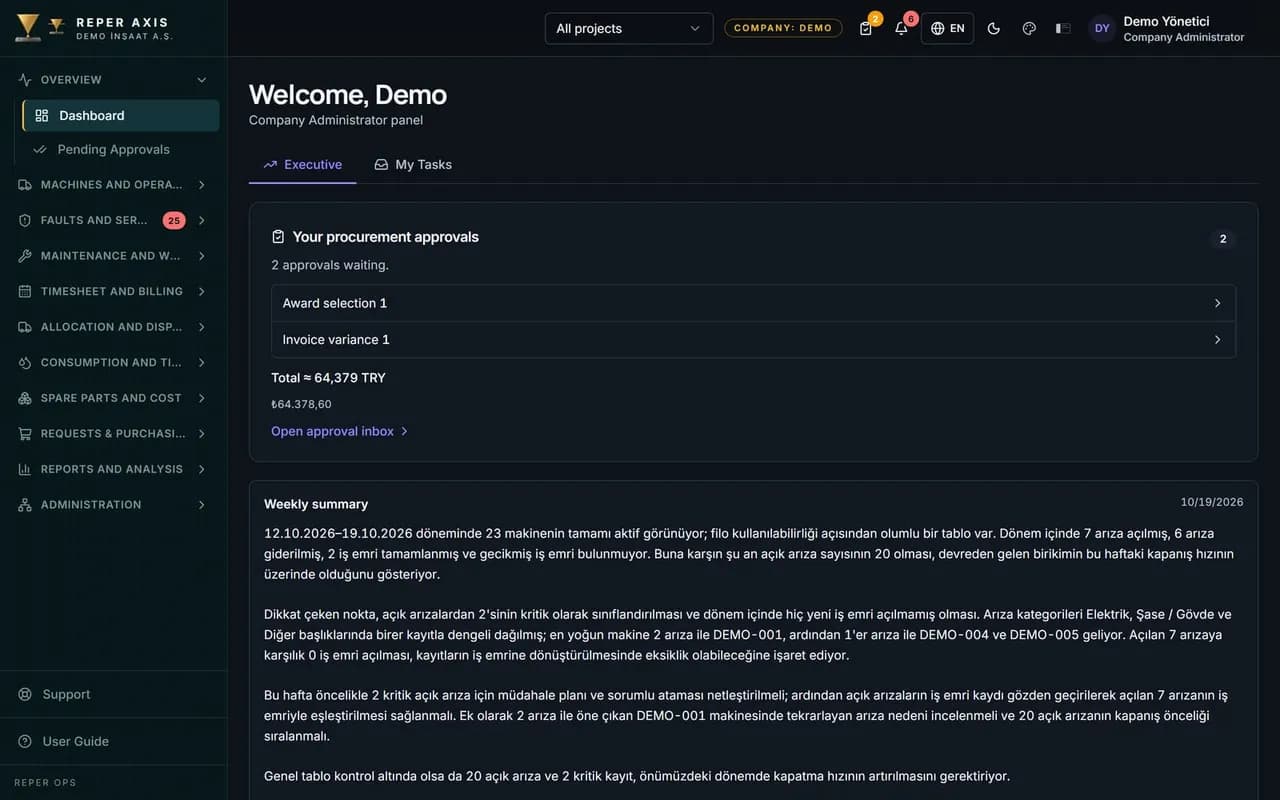
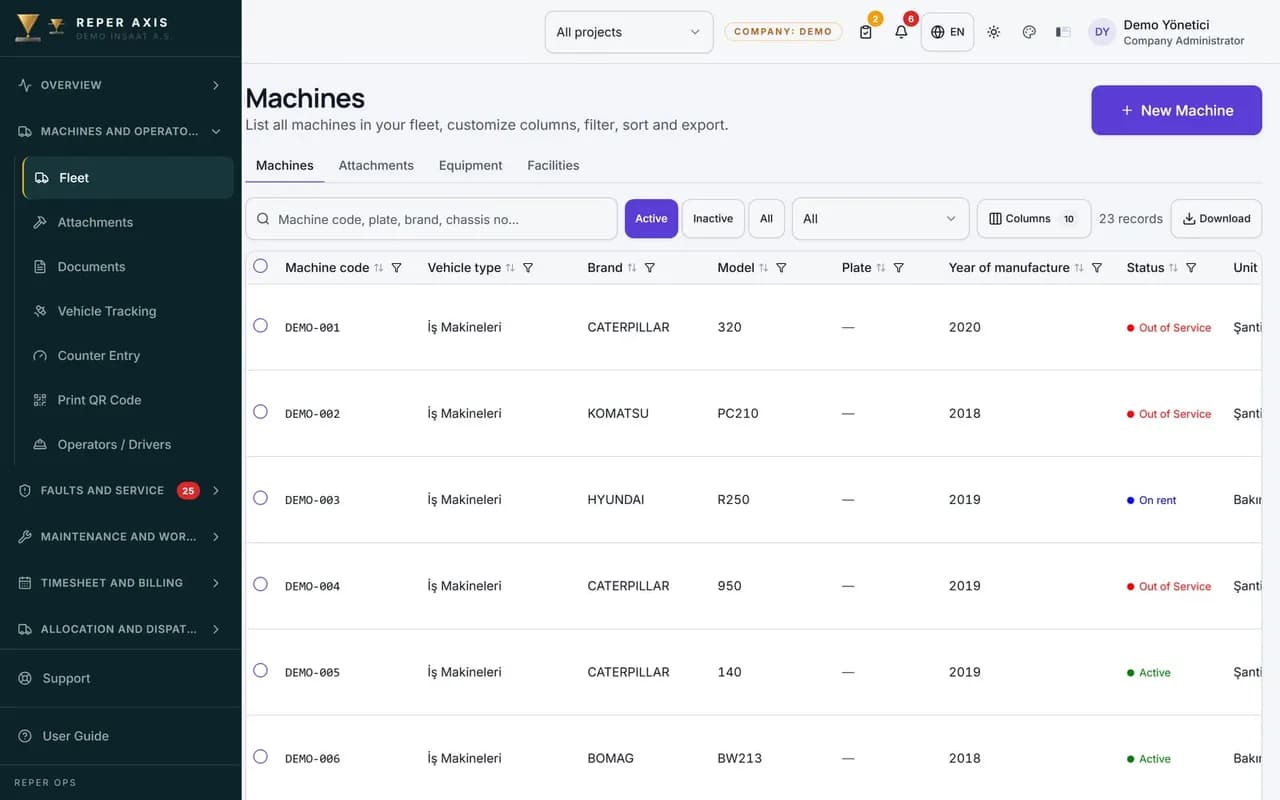
Density is set to Comfortable, Compact or Field; Field mode offers large touch targets and suits field use on phones and tablets. Preferences are stored per user; the company administrator can define the default shell, theme and density for new users.


See the platform with your own structure
Describe your companies, projects and roles and we will set up the permissions with you in the demo.