
Daily Equipment Inspection Checklist App: QR Inspections on Site
Start-of-shift checks, without the paper
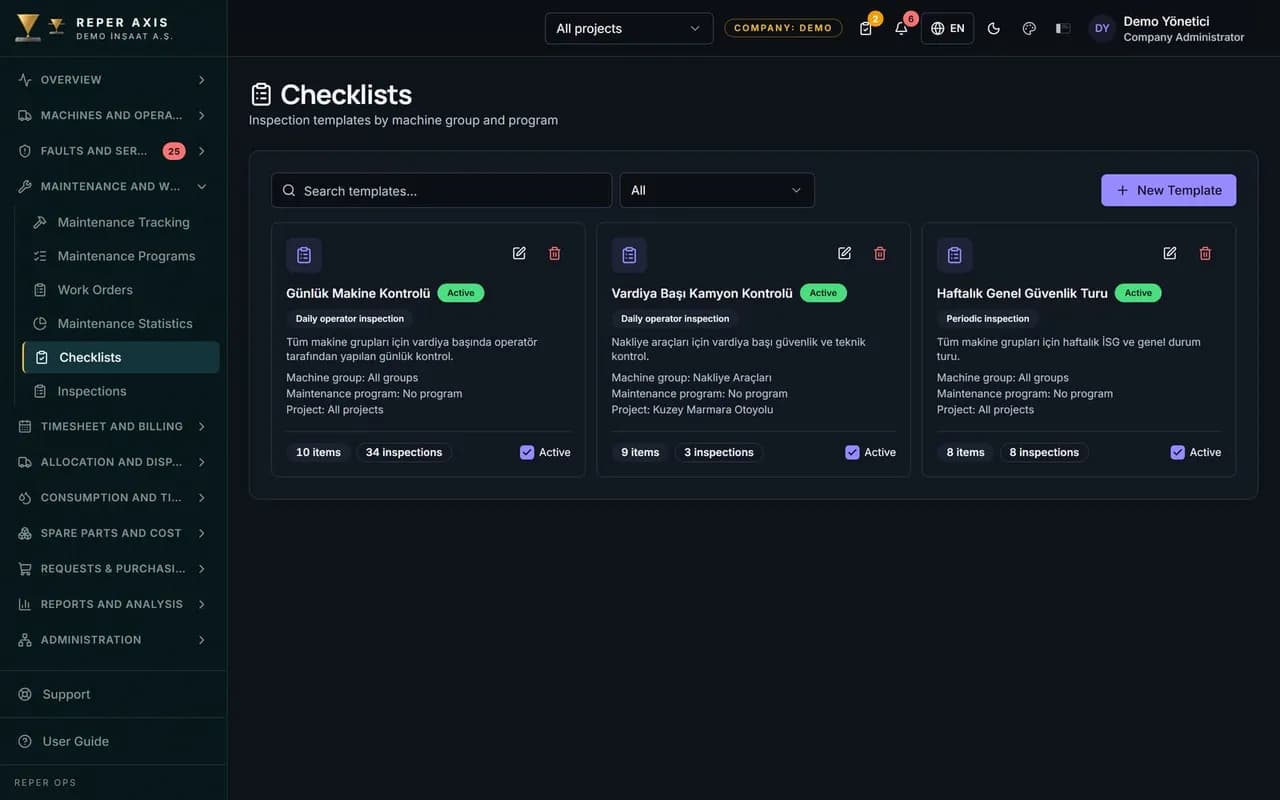
Checklist templates are defined per machine group: the daily excavator walkaround, the start-of-shift truck check, the weekly safety inspection. The operator fills the list in on site, and items can be marked as photo-required or critical. Every completed inspection is archived against the machine, the operator and the date.
Filled in on site with a QR code
The operator scans the QR code on the machine and the list defined for that group opens on screen. There is no hunting for which list to fill in.

A critical item opens a fault
When an item marked as critical fails, the system creates a fault record automatically. The form does not sit in a folder, it turns straight into a work order.
Photo evidence
On items that require a photo, it is documented that the check was genuinely carried out. The images are stored inside the inspection record.

Location check
The system checks whether the inspection was carried out at the site where the machine is. Submissions outside the recorded location raise a warning.

Items that link to work orders
Checklist items are added to maintenance work orders as tasks. Planned maintenance and the daily inspection run to the same standard.
A paperless archive
Inspections are searchable by machine, operator and date. The forms are not in a cabinet, they are in the audit trail.
How it works
- 1
Prepare the template
Set the items per machine group, marking the critical and photo-required ones.
- 2
Fill it in on site
The operator scans the QR code, ticks the items and attaches the photos.
- 3
Let the result flow
A failed critical item becomes a fault and the inspection goes into the archive.
How the daily equipment inspection checklist app is set up
A new template is created from the Checklists page under the Maintenance menu. The template name is entered and a machine group and/or maintenance program is selected as the target. On a template that will be filled in on site every day, the Daily operator check flag is switched on. Items are added one by one; each item can be a Yes/No, a Number or a Photo-required type. On critical items the Open a fault if failed option is ticked and a fault category is selected.
Keeping a single daily template per machine group is recommended; the check opened from a QR code selects that template automatically. If the same template is linked to a maintenance program, its items drop onto the work order as tasks.
What the operator does on site
The operator scans the QR code on the machine with a phone and taps Inspection on the page that opens. The daily template is selected by itself; the items are ticked in order, number fields are filled in, photo-required items are captured with the camera and Submit completes the record. For a critical item marked as failed, the system opens an inspection-linked fault; the fault reference appears on the inspection detail and the source inspection appears on the fault detail. With no connection, items without photos are queued and sent once the connection returns; photo-required items need the device to be online. Nothing is installed on the phone, a browser and a camera are enough.
The screens the manager sees
The Inspections page under the Maintenance menu lists every record with machine, template, date and result filters. Opening a row shows the answers given, the photos and the location the inspection was submitted from; if that location is far from the machine's telemetry or location record, a geofence warning flag appears on the row. The Daily checks not done today card on the dashboard shows the missing inspections, and clicking it opens the Missing inspections view. The inspection completion rate also appears in the operator performance report, which is exported as Excel or PDF.
How it connects to the other modules and who it is for
The checklist is the entry point to the fault and work order modules: a failed item opens a fault, the fault becomes a work order, and the Tasks card on the work order is fed from that same template. Permissions are separated: Manage Checklists sets up templates, Perform Inspection submits from the field, and View Inspections follows the list. It suits job sites that have to document start-of-shift checks for health and safety, truck fleets, and maintenance teams who want to be rid of a paper form archive.
FAQ
Can a separate list be defined for each machine group
Yes, heavy equipment, trucks, attachments and plant groups each run with their own templates. The same template can also be applied to more than one group.
How are completed inspections reported
An inspection report is produced by machine, operator and date, and exported as Excel or PDF. The completion rate also appears in operator performance.


Ready to digitize your equipment fleet?
Take the first step toward a more efficient, more controlled and more profitable operation.