
Heavy Equipment Fleet Management: Every Machine in One List
A complete, up-to-date list of your fleet
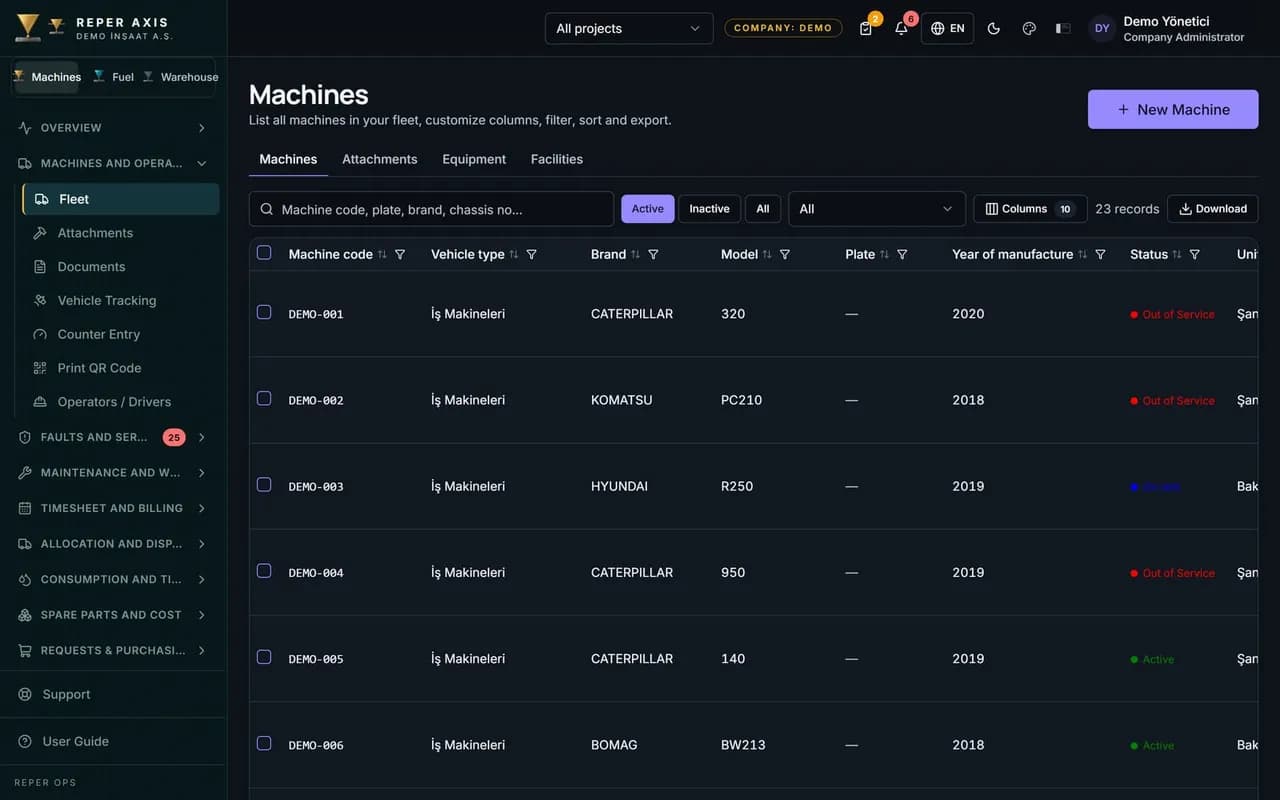
Heavy equipment, trucks, attachments and fixed plants are kept in separate groups, and every group runs with its own checklist and maintenance program. Machine code, plate and chassis number, make and model, year of manufacture, status, project and site all appear in the same list. Column layouts are saved per user, and any filtered list can be exported.

Group-driven setup
Machines are separated by group, and each group carries its own inspection and maintenance routine. A new machine joins the same standard the moment it enters a group.
Natural sorting and make merging
Machine codes are listed as 1, 2, 10 instead of alphabetically. Differently spelled manufacturer names are merged under a single make.

Ownership and contract badges
Owned versus rented status, warranty and contract state are visible right in the list. Nobody has to hunt for the machine whose rental just expired.

Project, company and site
The list shows which project and site the machine is on and which company it works for; the owner company is recorded separately. Transfers between job sites and between companies are written into the machine record.
Definitions you control
Statuses such as active, in maintenance, down and rented out, plus fuel types like diesel, electric and hybrid, are defined per company.

The list your way
You choose which columns appear and the preference is saved per user. Any filtered list can be exported to Excel or PDF.
How it works
- 1
Set up the groups
Machine groups, statuses and fuel types are defined per company.
- 2
Enter the machines
Identity data, ownership, project and site are recorded.
- 3
Use the list
Filter it, arrange the columns, export to Excel or PDF.
How Reper Axis works as heavy equipment tracking software
The fleet inventory is the list every operation in Reper Axis starts from. The fleet manager or data owner opens the New Machine form from the Machines menu and enters machine code, plate or serial number, machine group, make and model, year of manufacture, status, project and site. Heavy equipment, trucks, attachments and plants are kept in separate groups, and the Machines, Attachments and Plants links in the menu open the same list filtered to the relevant type.
Choosing a group is not a cosmetic field. Maintenance programs, checklist templates and the tyre axle layout are all driven by the group, so a newly purchased excavator joins that group's inspection and maintenance routine the moment it is assigned correctly. Different spellings entered in the make field are consolidated under one canonical manufacturer through the alias list in the definitions.
What the manager sees in the list
On the list screen machine codes are sorted naturally: 1, 2 and 10 follow one another instead of 10 jumping ahead of 2. Owned versus rented status along with warranty and contract state appear as badges on the row. Which project and which job site a machine sits on is read from the same row, and several machines can be selected and moved to a new site at once with Assign Location. Owner company and operating company are separate columns; the list can be filtered by either company as well.
Visible columns are picked from the Columns menu and the preference is saved per user, so the same layout opens at the next login. Filtered lists are exported to Excel and PDF. Statuses such as active, in maintenance, down and rented out, and fuel types such as diesel, electric and hybrid, are not fixed; they are edited per company from the Definitions section.
How it connects to other modules
Clicking a machine opens the machine card, where every other module comes together: meter status, documents, faults, work orders, tyres, contracts, performance and health tabs all live on the same card. Fault reports, checklists, fuel refuelling and meter entries are always tied back to a machine on this list. The QR label printing page is fed from here too; labels are selected with group and type filters and printed in an A4 layout.
Who it suits
It is designed for construction, mining, earthworks and infrastructure companies running heavy equipment, trucks and fixed plants across several job sites. The existing machine list is imported in bulk during onboarding, and new machines are added individually afterwards. A machine that already has transaction history is never deleted, only deactivated, so past records are preserved and reports stay intact.
FAQ
Can I import my existing machine list in bulk
Yes. Your current list is imported during onboarding and we support you through the data migration. After that, new machines are added one by one.
Can non-vehicle assets such as plants and attachments be tracked
Yes. Plants and attachments are kept as separate groups and run with their own maintenance programs. The meter type is also chosen per group.

Ready to digitize your equipment fleet?
Take the first step toward a more efficient, more controlled and more profitable operation.