
Spare Parts Tracking: Work Orders, Maintenance Programs and Machine Cost
Parts tied to the machine and the work order
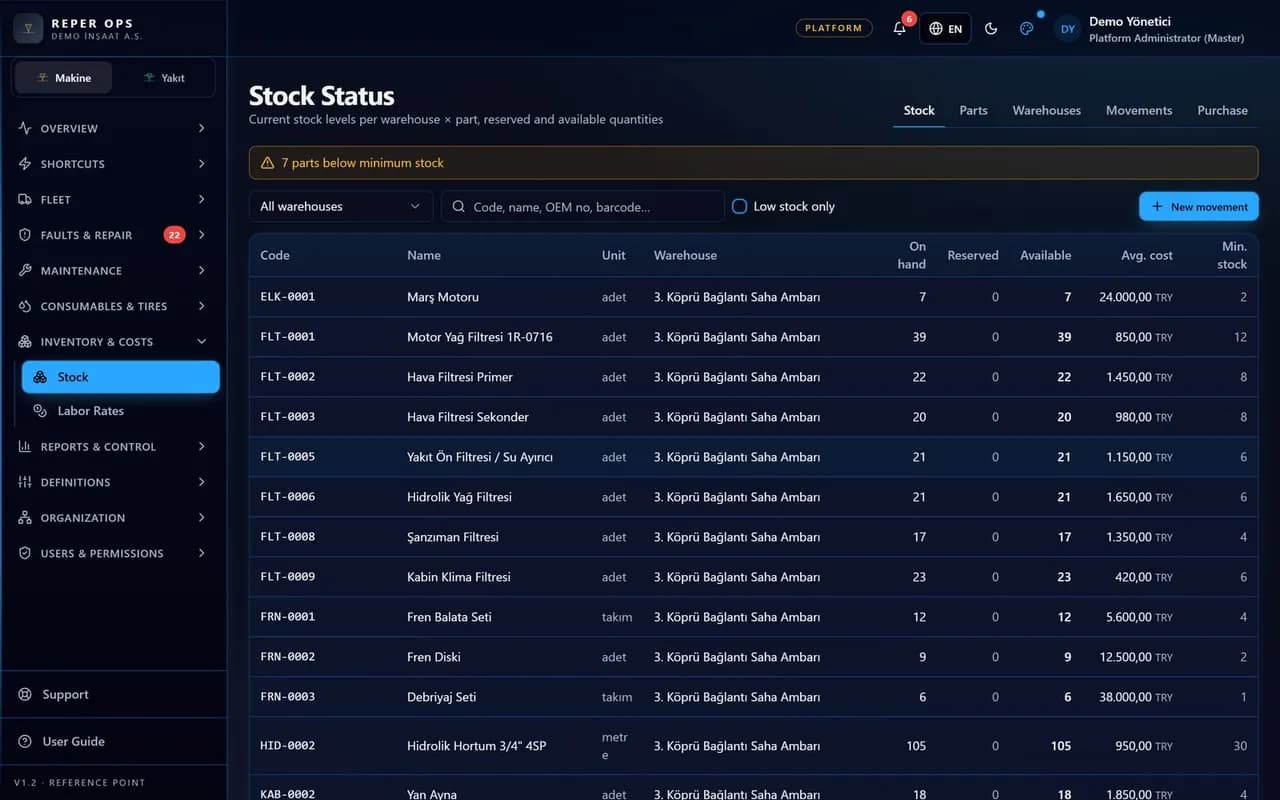
Part cards carry the machine types they fit, so the technician picks only matching parts on the work order; stock is reserved and, when the job is done, posted to cost. Maintenance program items are linked to part cards, so preventive work orders arrive with filters and oils already listed. Critical parts below minimum stock show on the dashboard and in notifications. Reper Axis ties each part to the machine and the work order; restocking a shortfall runs through the Requests and Procurement module.

Machine type compatibility
Every part card carries the machine types it fits. Adding the wrong part to a work order is prevented from the outset.
Integrated with work orders
The part is reserved when the work order opens and consumed to machine cost when the job completes. Available quantity is read from the stock record.

Weighted average cost
Consumed parts are costed from the weighted average built from stock receipts. The parts column in the machine cost report stays correct by itself.
Material requests and supply
When stock is short, a material request is raised from the work order; order, goods receipt and inbound stock are tracked in the Requests and Procurement module. Axis carries which part the job needs.
Low stock alerts
When a critical part falls below its minimum level, maintenance and purchasing are notified. The same alert appears on the management dashboard.

Machine parts cost
On work order closure, parts spend is written to the machine cost card. Stock value and inventory reporting are available under Reports.
How it works
- 1
Define part cards
Enter the code, unit, minimum stock and compatible machine types; the stock balance is tracked on the same card.
- 2
Link to the maintenance program
Attach part cards to planned maintenance items so preventive work orders bring the material list ready.
- 3
Link to work orders
Parts are reserved and, on completion, consumed and posted to machine cost.
- 4
Cover the shortfall
A low stock alert becomes a material request; supply is followed through in the Requests and Procurement module.
Part cards, machine fit and critical stock
The part card holds code, name, unit, minimum stock and compatible machine types or groups; stock quantity and costing detail are tracked on the card. When a critical part with a minimum falls below that level, a low stock alert appears on the dashboard and maintenance and purchasing are notified.
Compatible machine types mean the technician only sees matching parts on the work order, blocking the wrong item from the start.
Stock visibility and cost
Part receipts, issues and consumption are recorded as stock movements; weighted average cost is updated with each receipt. Reper Axis handles part selection, reservation and consumption cost on work orders and maintenance programs. Stock levels and movement history can be viewed.
Work orders and the maintenance program
On the Parts card of the work order, Add Part selects part, warehouse and quantity; stock is reserved immediately. If stock is short, a warning appears and a material request can be opened; delivery and inbound stock are completed in the Requests and Procurement module. When the work order completes, reserved parts are consumed at the weighted average cost; on cancel, the reservation is released. Because maintenance program items link to part cards, preventive work orders arrive with the required filters and oils already listed.
What the manager sees, and permissions
Machine and project cost reports show parts spend on the machine card when the work order closes; the low stock list appears on the management dashboard. Inventory value, movement summary and Excel export appear in reports. Permissions are split: viewing stock and movements is granted separately from adding parts to work orders and viewing cost. Maintenance teams tie parts to machines while keeping stock discipline in the same record.
FAQ
Can more than one warehouse be managed
Yes. Part stock is tracked per warehouse; when a part is picked on a work order the warehouse balance is shown and the reservation is tied to the job.
How is part cost calculated
A weighted average is built from stock receipts; when the work order completes, consumption is posted to machine cost at that value. There is no need to enter prices by hand.


Ready to digitize your equipment fleet?
Take the first step toward a more efficient, more controlled and more profitable operation.